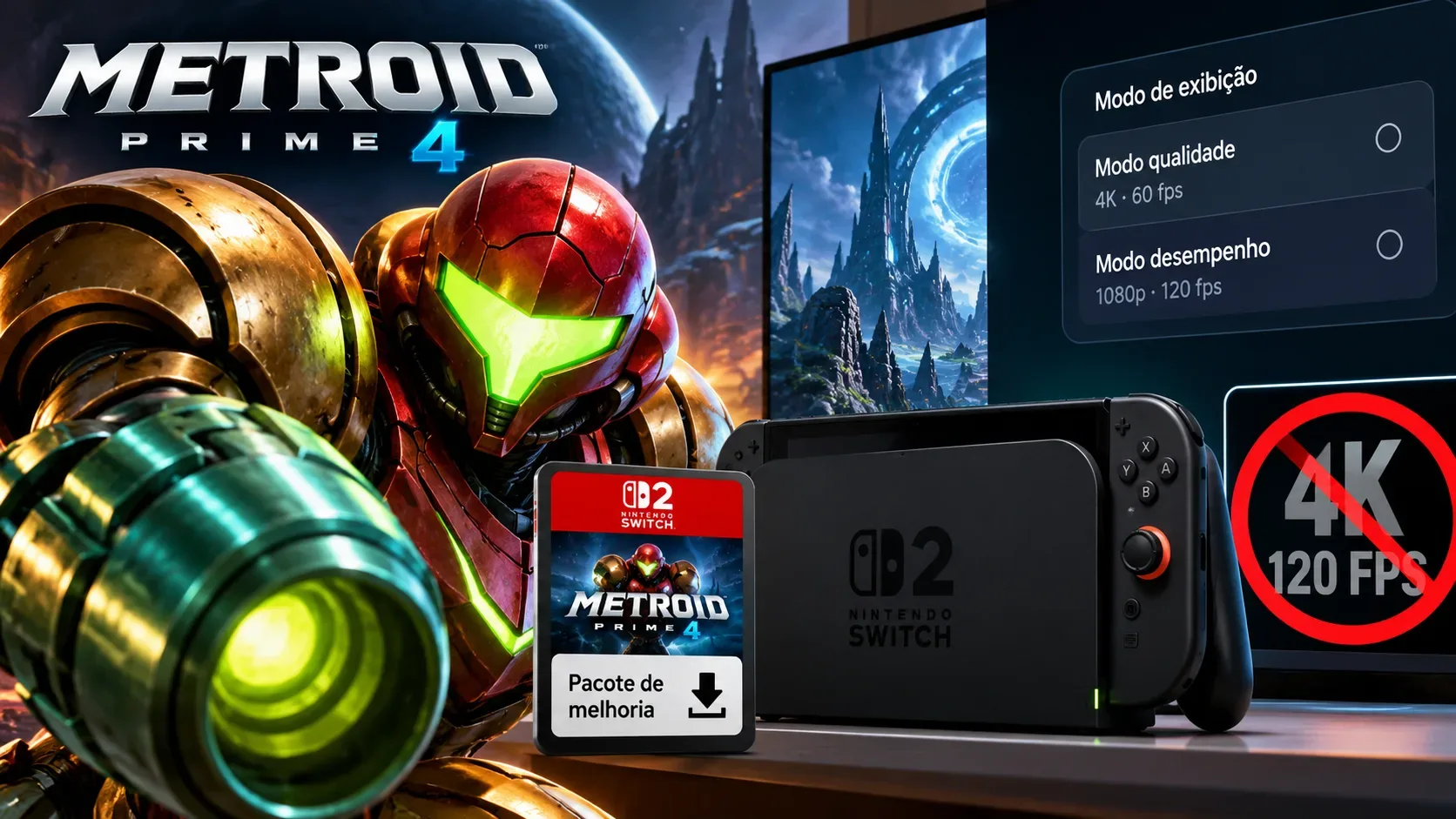
If you bought the Metroid Prime 4: Beyond upgrade pack but cannot find the enhanced graphics options, first check that you are playing on Nintendo Switch 2, that the base game is up to date, and that the pack is actually loaded or downloaded through the purchasing account. There is also an important misunderstanding behind searches for “4K/120 fps”: Nintendo does not offer both at the same time. In TV mode, Quality Mode targets 4K at 60 fps, while Performance Mode targets 1080p at 120 fps, provided the display supports it.
4K or 120 fps: what are the actual display modes?
The upgrade pack adds display and control options and improves resolution, textures, and loading times. But Nintendo specifies different resolution and frame-rate combinations for each Metroid Prime 4: Beyond Switch 2 Edition setup:
| Play setup | Display mode | Resolution | Frame rate |
|---|---|---|---|
| Docked / TV | Quality | 4K | 60 fps |
| Docked / TV | Performance | 1080p | 120 fps |
| Handheld or tabletop | Quality | 1080p | 60 fps |
| Handheld or tabletop | Performance | 720p | 120 fps |
Both modes support HDR. On a TV, 4K requires a display capable of that resolution, while 120 fps requires a screen with a 120 Hz refresh rate. Owning a 4K television alone does not guarantee 120 Hz. Nintendo caps its 4K output at 60 fps. Handheld and tabletop play do not provide a 4K output.
1. Check the console, base game, and updates
- Make sure you are using a Nintendo Switch 2. Switch 2 Edition features cannot be downloaded or used on the original Nintendo Switch, even if you have purchased the upgrade.
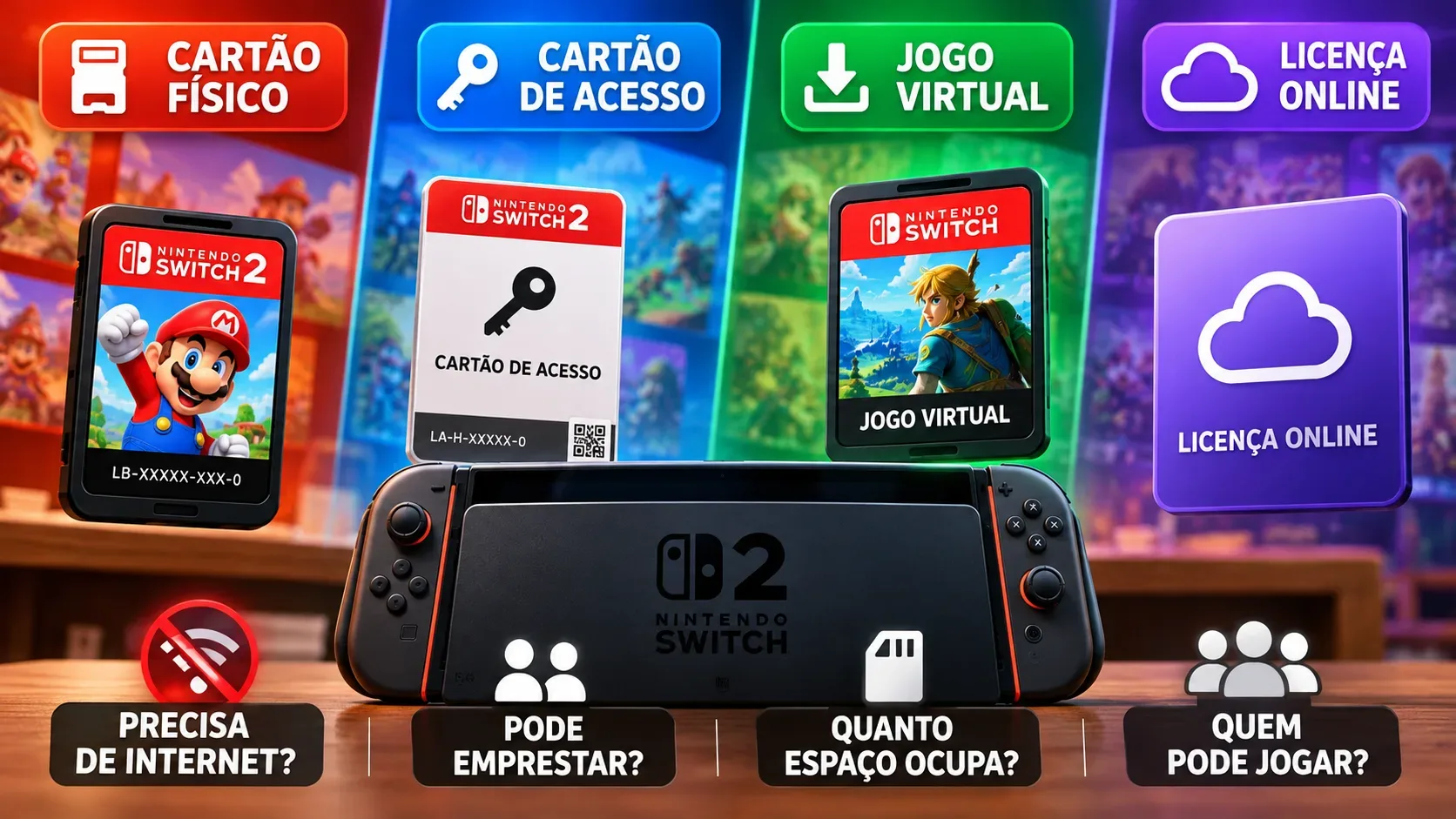
- Confirm that you own Metroid Prime 4: Beyond, either on a physical game card or digitally. The upgrade pack requires the base game. The complete Switch 2 Edition already includes the game and upgrade, so it does not require a separate upgrade-pack purchase.
- Update the console through System Settings > System > System Update. Then, on the HOME Menu, highlight the game without launching it, press + or -, and select Software Update > Via the Internet.
- Restart Switch 2: hold POWER for three seconds, open the power options, and select Restart.
These are the initial checks in Nintendo's game-specific troubleshooting instructions for missing Metroid Prime 4: Beyond enhancements.
2. Verify the purchase and load the upgrade on Switch 2
- Open Nintendo eShop using the Nintendo Account user who actually purchased the upgrade, rather than another profile that happens to share the console.
- Search for the Metroid Prime 4: Beyond Nintendo Switch 2 Edition upgrade pack. If it shows “Purchased,” continue. If a price is displayed, Nintendo says to check whether a different account bought it or whether the pack has not been purchased by this user.
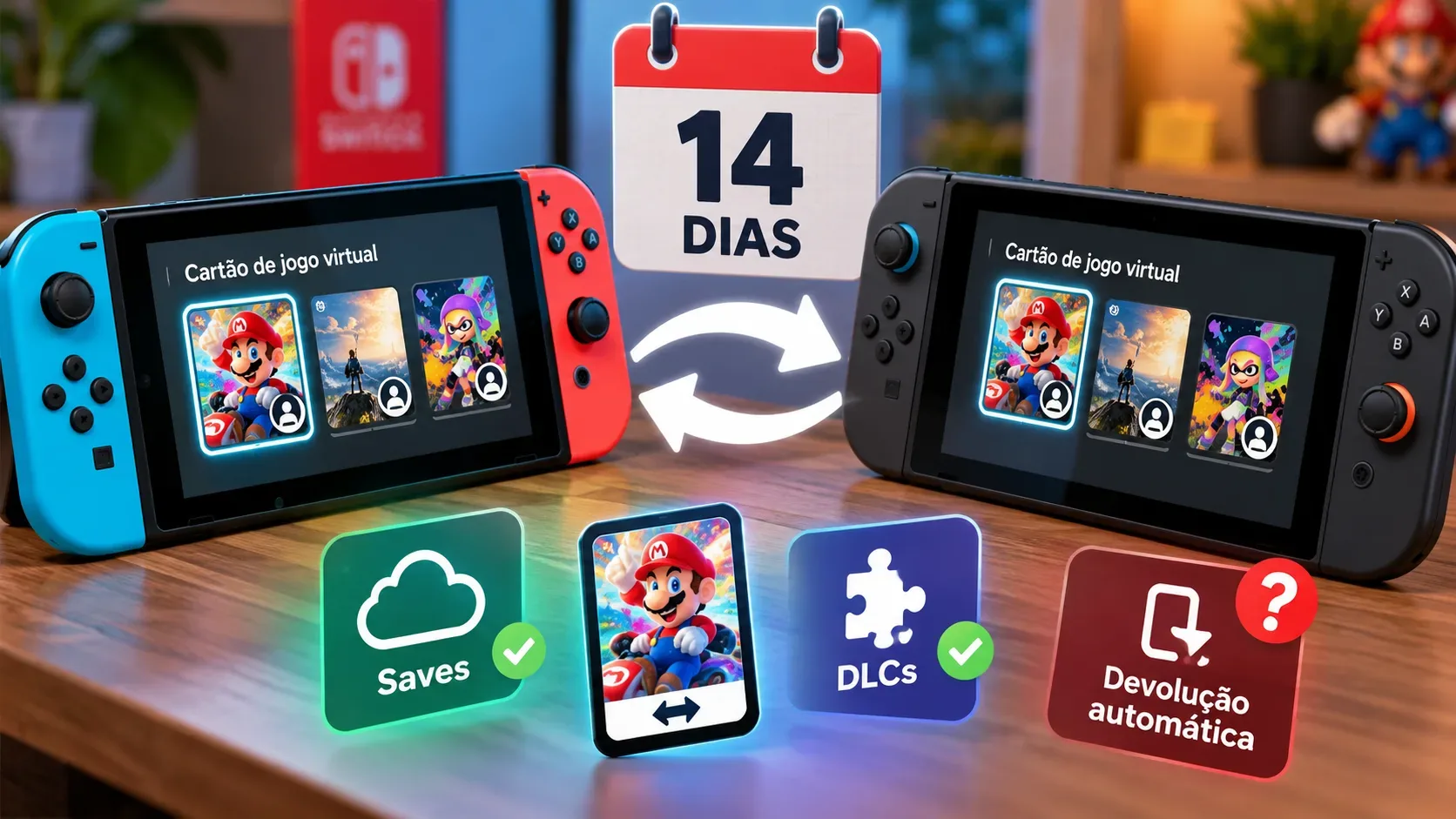
- Open Virtual Game Cards and check that the upgrade pack's virtual card is loaded on this Switch 2. From the HOME Menu, choose Virtual Game Cards, select the purchasing user, choose the content, and use the option to load it on this system.
- If you use online licenses, Nintendo also describes enabling Use Online License under your user settings, then choosing the content under Virtual Game Cards > Options > Download Data. Watch the download progress on the HOME Menu.
Now start the game. According to Nintendo, the title screen should identify it as Nintendo Switch 2 Edition, and its in-game settings should contain the enhanced display and control choices. This is a more useful installation check than looking only at your television's resolution menu.
3. The upgrade is active, but the TV still does not show 4K or 120 Hz
At this point, distinguish the installed upgrade from the compatibility of the video output. Under System Settings > Display, Switch 2 lets you review video output information, select a TV resolution, and enable 120 Hz output where supported. The system's 120 Hz output setting works only at 1080p or 1440p; Metroid Prime 4's Performance Mode specifically uses 1080p at 120 fps when docked.
- For maximum detail, choose Quality Mode, dock the console, and use a 4K-compatible TV. Check the selected resolution in the display settings.
- For smoother motion, choose Performance Mode and check whether your TV and the HDMI input in use support 120 Hz, with that option enabled on both the console and TV where necessary.
- Do not test 120 Hz using the HOME Menu: Nintendo states that this interface does not output at 120 Hz. Check while running compatible game software instead.
- If you want HDR, the connected display must support it as well. HDR is not the same thing as 4K or 120 fps.
In other words, not having 4K and 120 fps simultaneously is an expected specification limit, not a broken upgrade. If the new display and control options are entirely absent, return to the edition and installation checks.
4. If the enhancements are still missing, reinstall without erasing progress
If the title screen still lacks the Switch 2 Edition identification, Nintendo recommends additional steps depending on whether your copy is physical or digital. For a physical copy, close the game, remove the game card only while the system is on the HOME Menu or switched off, delete the software data, reinsert the card, update the game, and download the upgrade again. For a digital copy, delete the software data, redownload the game with the relevant account, and verify the update and upgrade license.
The distinction matters: delete software data, not save data. Before deleting anything, confirm the option under System Settings > Data Management > Manage Software. If the issue continues after reinstalling, Nintendo's official instructions direct you to contact support. There is no reason to buy a second copy of the pack merely because the modes are missing.
Sources and references
- Nintendo Support (Brazil): Metroid Prime 4 additional features not accessible
- Nintendo Brazil store: Metroid Prime 4 upgrade pack
- Nintendo Brazil: how Nintendo Switch 2 Edition games work
- Nintendo Support (Brazil): adjust Nintendo Switch 2 display settings
- Nintendo Support (Brazil): 120 Hz TV output troubleshooting