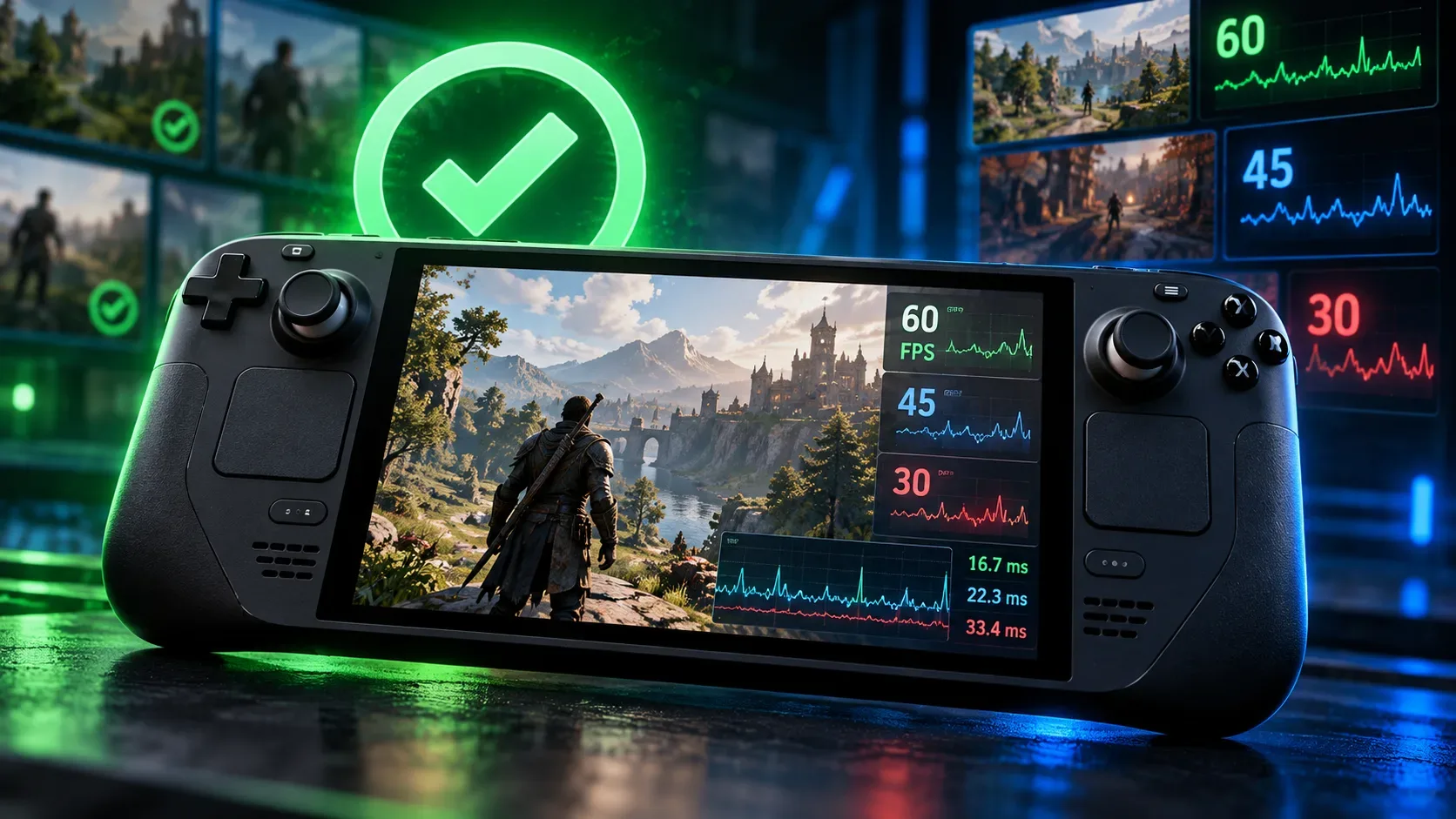
No. The Steam Deck Verified badge means a game has met Valve's compatibility criteria without requiring manual tweaks to access its features. It does not promise 60 FPS, perfectly smooth gameplay, or identical performance in every scene. Steamworks' technical documentation does include a performance requirement: the default configuration must deliver a playable frame rate, defined on Steam Deck as 30 FPS at 800p. That threshold does not turn the badge into a public benchmark with detailed performance results.
What does Valve test before awarding Verified status?
The public program page groups its checks into four areas: input, display, seamlessness, and system support. The developer-facing documentation also explicitly states the default-settings performance requirement. Read together, they explain why verification is about more than counting frames per second.
| Criterion | What Valve checks |
|---|---|
| Input | Working physical controls, correct button prompts, and text entry that does not depend on an external keyboard. |
| Display | Resolution compatible with the Deck's screen and readable text, including menus and interface elements. |
| Seamlessness | No inappropriate compatibility warnings and launchers that can be operated with a controller. |
| System support | The game and necessary components working under SteamOS and, where relevant, Proton, including anti-cheat software. |
| Performance | The Steamworks documentation requires default settings capable of a playable 30 FPS at 800p on Steam Deck. |
The 30 FPS threshold is part of the review process Valve describes, not a certificate that a game will hold precisely 30 FPS at every moment. The shorter public-facing page also does not provide per-game frame-time charts, percentiles, or minimum FPS results.
Verified, Playable, Unsupported and Unknown: what is the difference?
| Status | Meaning in Valve's program | What it does not establish about FPS |
|---|---|---|
| Verified | Passes the requirements and works out of the box without necessary manual setup. | Does not guarantee 60 or 90 FPS. |
| Playable | Works but may require user intervention, such as touchscreen input or a controller configuration. | Does not prove it runs slower than a Verified game. |
| Unsupported | The review identifies a barrier to operation, such as incompatibility with Proton or required components. | Is not an FPS score for a normally running game. |
| Unknown | Valve has not completed its compatibility review. | Means neither poor performance nor certification. |
Why can a Playable game deliver higher FPS than a Verified one?
Because a Playable game can miss the higher badge for reasons unrelated to graphics horsepower. Valve lists launchers requiring touch interaction, an on-screen keyboard that does not appear automatically, and the need to select a controller layout as examples. A game with such a limitation could run at a high frame rate, while a Verified title could stay close to the playable performance threshold used in testing. This describes possibilities under the rules, not a measured head-to-head comparison between named games.
The badges are therefore not an ascending FPS ranking. The Steam store or library's compatibility details explain why a particular game received Playable rather than Verified status.
What separates a compatibility badge from the FPS you actually see?
To judge smoothness, distinguish average FPS, sudden drops, and frame time. Two sessions with similar averages can feel different if one suffers from interruptions, fluctuation, or loading-related issues. Resolution, graphics settings, frame caps, game updates, and testing conditions also matter.
Tested games retain their compatibility ratings on both Steam Deck LCD and OLED. That does not mean every game will reach the screen's refresh limit: the LCD model can display up to 60 Hz, while OLED can reach 90 Hz. Valve also notes that player-selected frame caps and external monitors affect observed data.
How do Does It Run estimates and benchmarks fit in?
Does It Run is an independent service, not Valve's official performance dashboard. Its Steam Deck page combines compatibility status with FPS estimates, including a reference scenario of 1280 × 800, low graphics settings, and FSR. According to its methodology, estimates are calculated from hardware requirements and performance models, then calibrated with measurements and player reports. The service warns that actual FPS can differ because of settings, drivers, and game updates.
These are three different kinds of information: Valve's badge describes compatibility; estimated FPS is a forecast subject to a model and its assumptions; and an on-device benchmark records behavior for a particular game build, scene, and configuration. None should be presented as interchangeable.
What changed in Valve's FPS data on October 21, 2026?
On October 1, 2026, Steamworks announced FPS distribution charts for partners whose games were Verified, using anonymized data from Steam Deck players who opted in to sharing. In an update on October 21, 2026, Valve extended partner access to Playable and Unsupported titles and added a filter to exclude samples recorded when the device was not using its default frame-rate limit.
These charts and averages appear in the Steamworks dashboard for developers and publishers, not in a public per-game FPS lookup. The data may include loading periods and sessions capped by players themselves. It can help studios investigate real-world experiences, but it does not establish that every Verified game holds a constant 60 FPS.
How to check performance before buying
- Check the badge on the Steam store and open the details. If a game is Playable, find out exactly what manual adjustment is required.
- Look for measurements made on Steam Deck, noting whether they used LCD or OLED, resolution, graphics quality, game build, and test date.
- Compare averages with frame-rate stability and drops whenever a benchmark provides that information; avoid relying on one isolated number.
- Use estimates as an initial guide and check whether recent updates have changed performance or compatibility.
The badge helps you see whether a game meets the Steam Deck program's compatibility rules. To find out whether it delivers the FPS you consider good, measured results under your preferred conditions remain the more specific evidence.